FROM MIDI TO MASTERY

Every MIDI file is a
Piano Lesson

Turn any song you have into a piano lesson you can see, hear and play. Follow falling notes, understand the chords, slow down tricky passages and practise at your own pace — with a powerful Windows app that’s free and open source.

Free forever · Open source · No account required

MORE THAN FALLING NOTES

Watch any song. Then play it

Orfeo brings visual learning, musical understanding and hands-on practice into one focused workspace. Watch a song unfold on the piano roll, follow the keys as they light up, and see the chords behind the music. When a passage gets difficult, slow it down, loop it, correct the timing or edit the notes. Use the on-screen keyboard on its own, or connect a MIDI keyboard and play along.

Whether you’re learning a favourite song, working out a tricky passage or exploring how chords fit together, Orfeo gives you room to learn by doing.

HOW IT WORKS – FROM FILE TO FINGERS

A few seconds from song to practice

Bring a song you love. Orfeo helps you turn it into something you can work on, one phrase at a time.

01

Turn the engine on

First things first: After installation go to Setup → Settings → Audio and switch Sound engine to Studio or Native. Both play sampled instruments. Then, load the song you want to learn.

02

Watch & listen

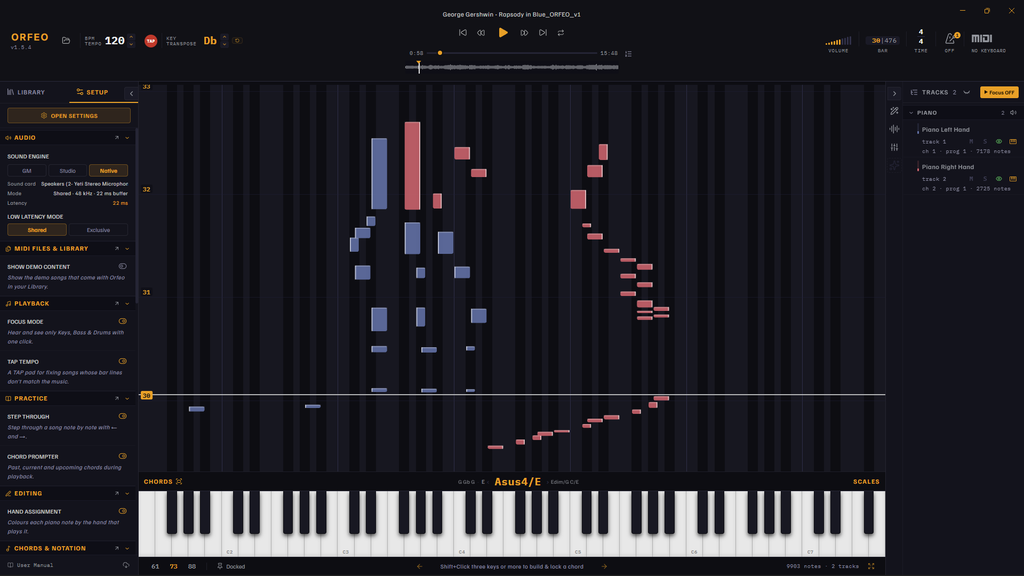
Audition your lesson. Follow notes as they fall towards the keyboard. Track colours help separate instruments, while the chord display gives you a view of the harmony.

03

Manage hard parts

Slow the tempo, set a loop around a tricky passage, tap in a beat when the file’s timing is off, and add a count-in before you begin. Use left and right arrow keys on your keyboard.

04

Explore & improve

Play along with a connected MIDI keyboard, assign notes to left and right hands, explore chords and scales, or edit the arrangement to suit the way you want to learn.

Make a lesson

From a messy download to a lesson that fits your hands

Most MIDI files online weren’t made for practising: the tempo is off, drums leak into the piano part, both hands sit on one track. Orfeo has the tools to fix all of it, and your original file is never touched.

Find THAT PERFECT MIDI FILE

Start with a file worth learning

Look for a file made for piano, with both hands and few extra instruments. Open it and Orfeo shows what’s inside: every track, its instrument and its notes on the roll, so you know in seconds whether it’s worth the effort.

Read where to find MIDI files →

Clean up the arrangement

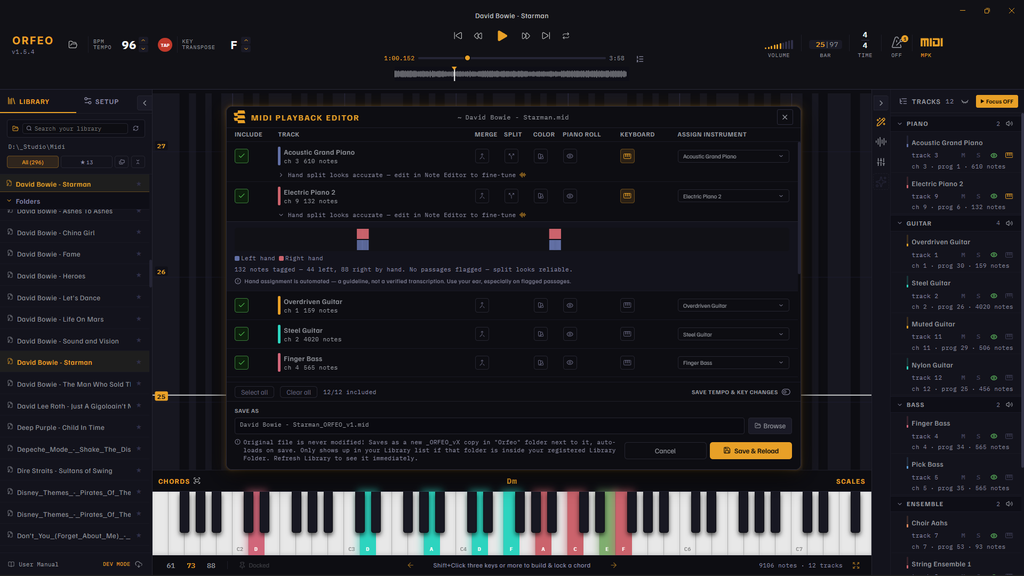
Hide or mute the parts you don’t need in the Tracks panel, merge or split tracks in the MIDI Playback Editor, and line the bar lines up with Tap Tempo. Every save is a new version, so the original stays as it was.

Read about the MIDI Playback Editor →

Fix the notes and the hands

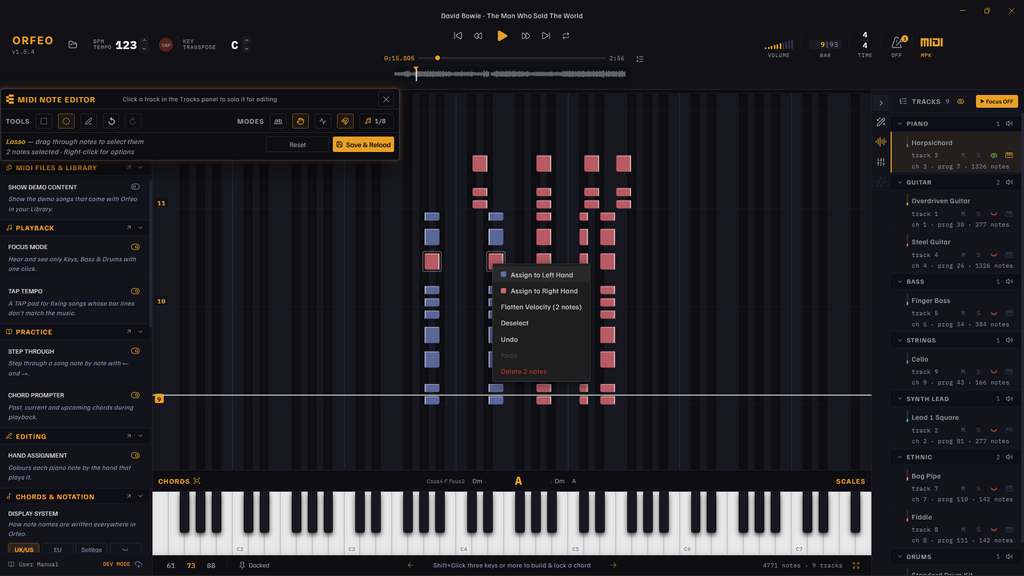
Open the MIDI Note Editor to correct wrong notes, move a note to the other hand or thin out a chord that’s too wide to reach. Then balance the sound in the Console Mixer so your part stands out.

Read about the MIDI Note Editor →

PractiCe MAKES PERFECT

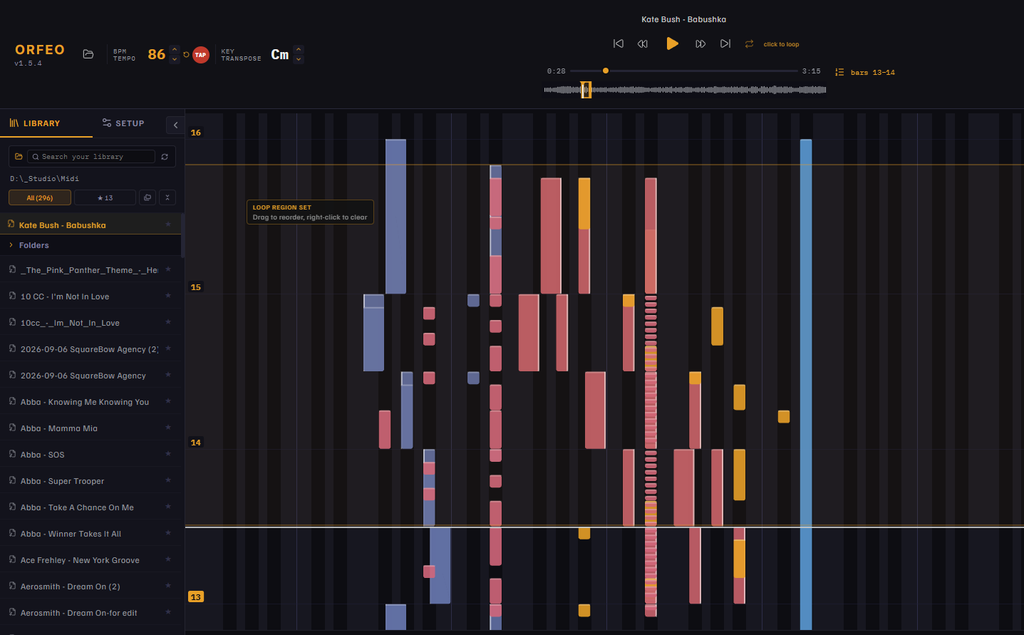
Now set it up for practice. Slow it down without changing the pitch, loop the bars that trip you up, add a count-in, and use Step Through to walk a fast run note by note with the arrow keys. Save it as a new version and your lesson is ready whenever you are.

Read how to turn a messy download into a lesson →

FEATURES BUILT FOR THE WAY YOU PRACTISE

Everything you need. Nothing in your way.

Orfeo brings playback, editing, practice, file management and sound into one Windows app.
Choose a tab to explore each part of the experience.

TURN ANY MIDI FILE INTO A LESSON

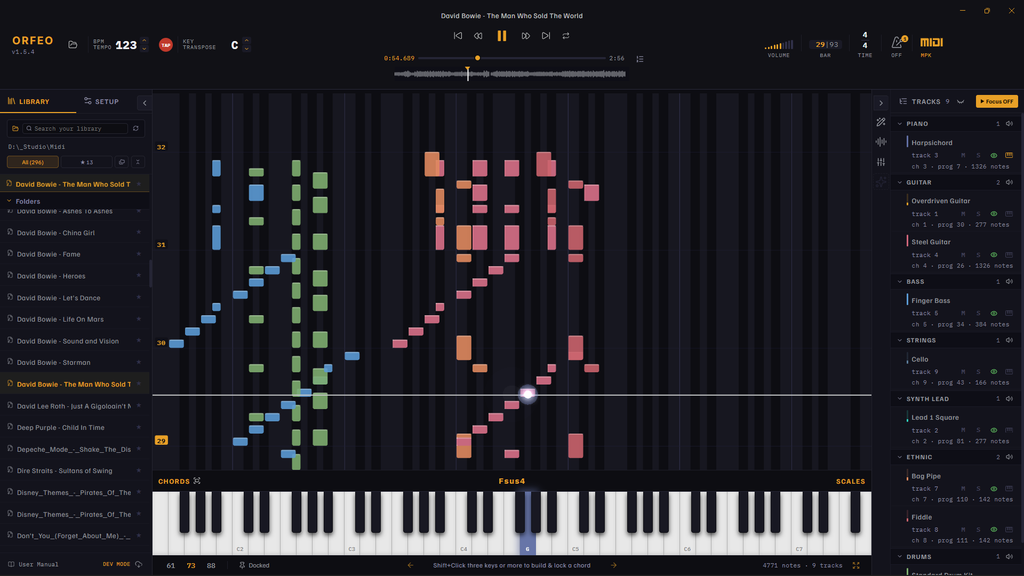
  • Falling-note piano roll — follow notes as they approach the keys on 61-, 73- or 88-key layouts
  • Live chord display — see the harmony named as the song plays, without letting every passing melody note confuse the picture
  • Tap Tempo — tap along when a file’s tempo or bar lines don’t match the music you hear
  • Tempo and key controls — slow the song down or transpose it to a more comfortable key
  • Metronome and count-in — hear a count-in of 1–4 bars before playing, aligned to the song’s tempo and time signature
  • Focus & Presentation modes — reduce distractions for practice or give the music more room on screen

Read about Playing MIDI files →

Make that file work for you

  • Track controls — show or hide parts, solo what you want to hear and keep the piano roll focused on the instruments you’re studying
  • Playback Editor — adjust the arrangement, manage tracks, assign instruments and prepare the version you want to practise
  • Note Editor — select, move, resize, add or remove notes with dedicated editing tools
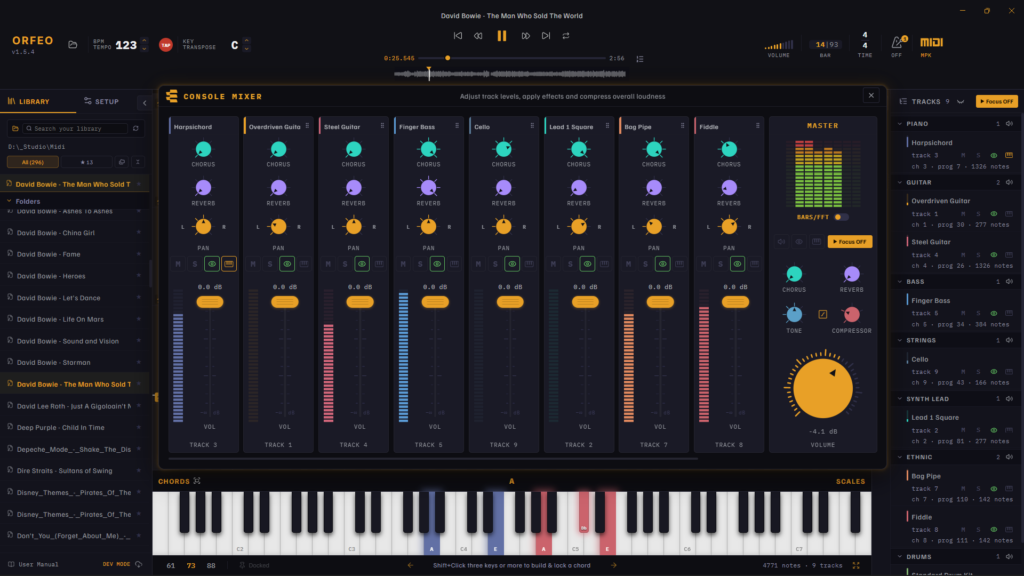
  • Console Mixer — balance track volume and panning, with chorus and reverb controls plus master compressor
  • Versioned saves — save edits as a new version rather than overwriting the source file
  • Embedded edit history — keep Orfeo’s edit history inside the MIDI file, so it travels with the file instead of being stranded in one app installation

Read about Editing MIDI files →

Practise that passage

  • Slow down & Loop — reduce the tempo without lowering the pitch. Repeat a selected range until the notes begin to feel natural
  • Count-in — get one to four bars of clicks before the music starts, so you can get your hands ready
  • Left- and right-hand colours — assign notes to each hand and make the parts easier to distinguish
  • Chord Prompter — keep the previous, current and upcoming chords in view
  • Lock-a-Chord — Pause and right-click displayed chord on the keyboard and try its inversions
  • Plug in your gear — connect your MIDI keyboard, play along and use real sustain
  • Chord charts — generate a chord chart PDF for a song (beta)

Read about Practising with MIDI files →

Your music, organised your way

  • Your own library — browse the songs and versions you choose to keep together
  • Supported music formats — open MIDI and other supported formats, including MusicXML, Guitar Pro and Karaoke files
  • Demo songs — explore the app straight away, even before you have your own files ready
  • Automatic library refresh — newly saved versions appear in the library without making you hunt for them
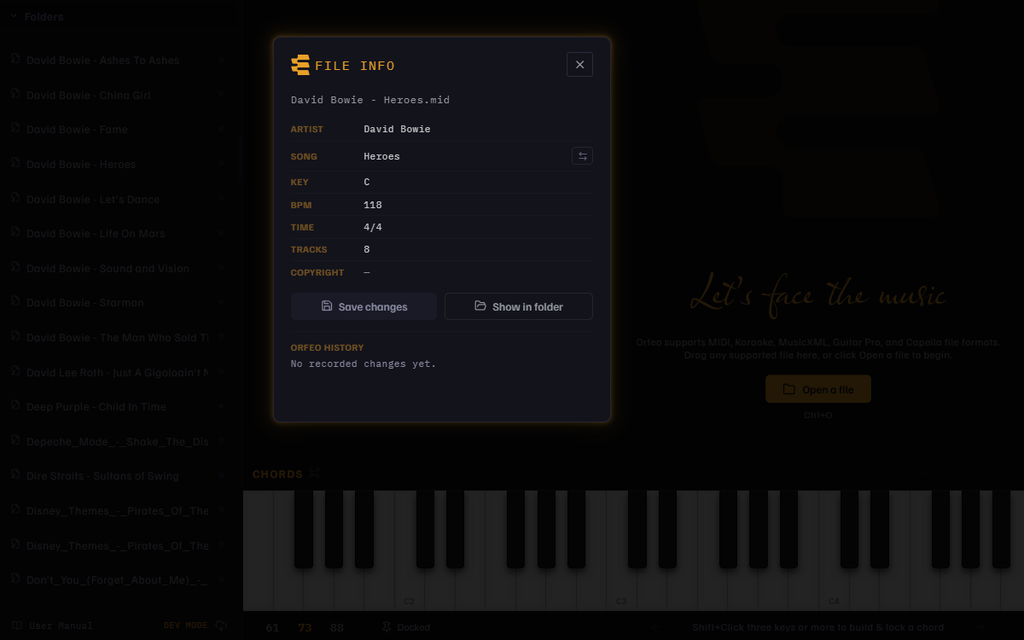
  • File information and history — inspect song details and the edit history stored with an Orfeo-saved MIDI file
  • Original files stay safe — edits are saved as new versions; Orfeo does not overwrite the source

Read about Managing MIDI files →

Make it sound and feel right

  • Three sound engines — choose GM (default), Studio (recommended) with recorded instrument sounds, or Native (beta) for the shortest delay when you play a keyboard
  • More sound choices — download additional sound sets or import your own .sf2 and .sf3 soundfonts
  • Visual note effects — choose from seven note-strike effects and customise their colour
  • Flexible keyboard display — choose the key range and note labels that make sense for your instrument
  • Notation preferences — adjust note naming and accidental display to suit your musical background
  • App Zoom — scale the interface from 80% to 200% like a browser

Read about Audio and sound engines and Appearance →

Go beyond following the notes

  • Chord Explorer — explore chord types, styles, voicings and inversions – in any key
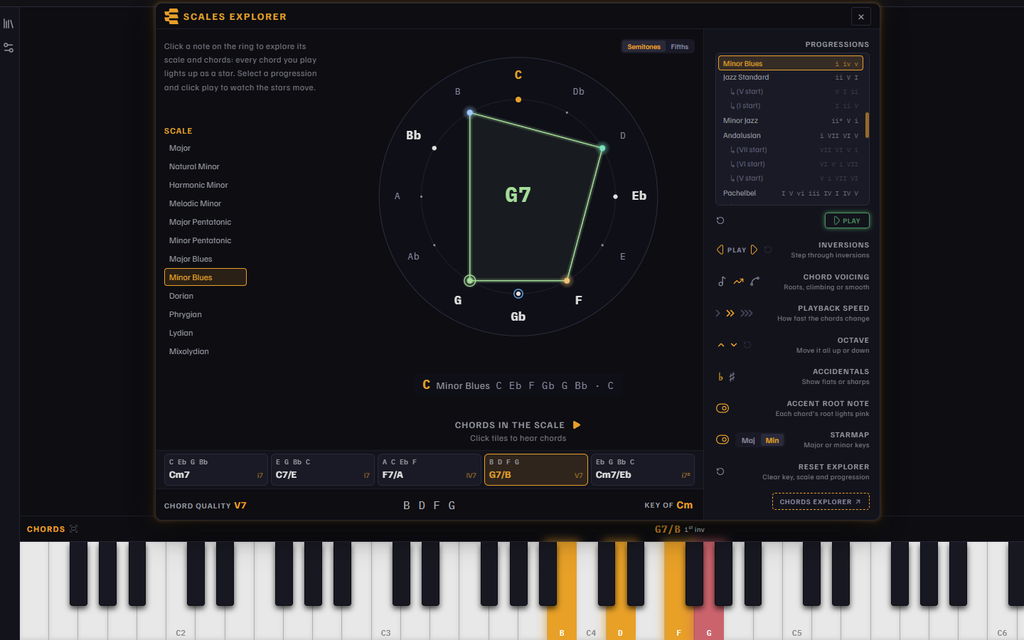
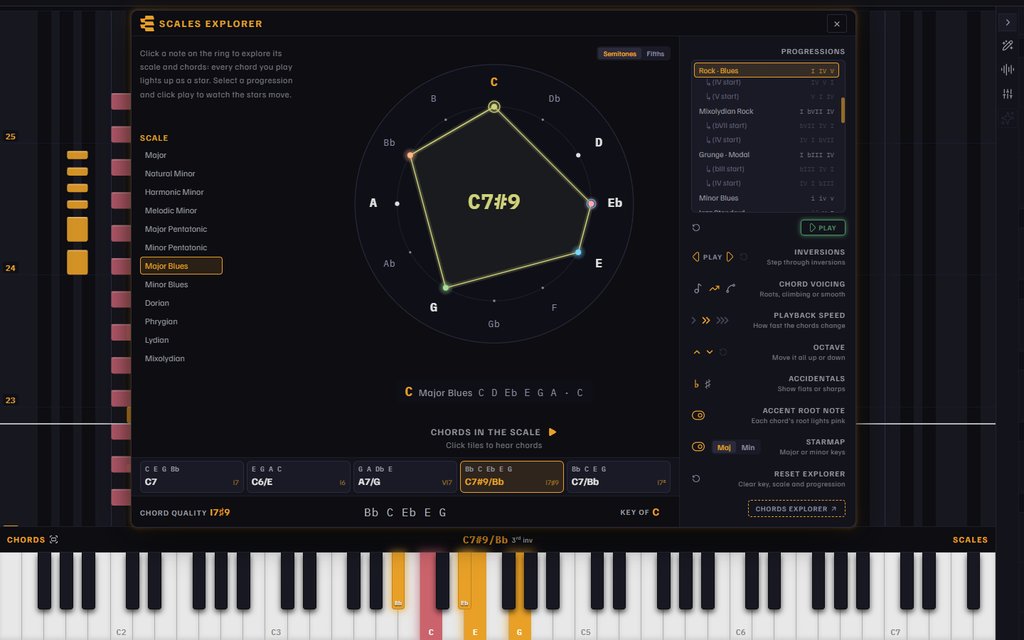
  • Scales Explorer — explore scales and their chords, with Roman numerals and an interactive Circle of Fifths
  • Progressions — hear chord progressions in different voicing styles, from root positions to smoother voice leading, across a shared set of progressions
  • Starmap — see a chord drawn as a glowing constellation of stars connecting its notes around a 12-note ring
  • Keyboard reflection — when paused or scrubbing, see the notes at the playhead lit on the keyboard
  • Searchable Settings — find a setting by name or by what you want it to do in a dedicated Settings window

Read about the Chords Explorer, Scales Explorer and Starmap →

Extras – WHERE ORFEO SHINES

Most piano apps count your streaks.
Orfeo counts the ways into your music.

A handful of things you won’t find in other piano apps: tools that show how the music is built, not just which key comes next.

  • Chords Explorer · twenty named progressions, 61 with their variations, in any key, nine styles and three voicings, every chord named as it plays.
  • Scales Explorer · an interactive Circle of Fifths: pick a key and one of twelve scales and hear every chord in it.
  • Starmap · every chord drawn as a glowing star on a ring of the 12 notes, gliding from chord to chord.
  • Lock-a-Chord · right-click a chord in the song to lock it, name it, play it and step through its inversions.
  • Live chord names · the harmony of any MIDI file named as it plays, not just the songs in a catalogue.
  • Chord Prompter · a teleprompter for chords: the last ones, the current one and the next two, always in view.
  • Chord charts · turn any song into a printable PDF chord chart with keyboard diagrams.
  • Step Through · walk a fast run note by note, or bar by bar, with the arrow keys.

PROGRESSIONS

61 progressions, in every key and style

61 progressions × 9 styles × 3 voicings × 12 keys = 19,764

Pop · Pop/Rock Inv. · Energetic Pop · Minor Pop · Doo-Wop · Rock · Blues · Mixolydian Rock · Grunge · Modal · Minor Blues · Jazz Standard · Minor Jazz · Andalusian · Pachelbel · Circle of Fifths · Royal Road · Epic · Heroic · Sentimental · Sad · Hopeful · Plagal Turnaround · Step-Down

Scales

12 scales, and every chord in them

12 scales × 12 keys × 3 voicings = 432 chord rows

Major · Natural Minor · Harmonic Minor · Melodic Minor · Major Pentatonic · Minor Pentatonic · Major Blues · Minor Blues · Dorian · Phrygian · Lydian · Mixolydian

Styles

Nine styles, one set of numerals

A style recolours a progression without changing what it is.

Classic

Plain diatonic triads
no extras

Roadhouse

Dominant 7ths for a bluesy edge

Carnival

Bright 7ths with a samba swing

Coltrane

9ths and 13ths
jazz harmony

Gospel

6/9 and maj9 chords, 13th on V

Flamenco

Phrygian fire: adds a
7♭9 on V

Cinematic

Open add9 and suspended chords

Ipanema

9ths, 11ths and a tritone sub

Velvet

11ths and 13ths
neo-soul

Voicings and inversions

Three ways to stack the same chords

  • Roots · every chord in root position, each one higher than the last.
  • Climbing · the first chord low, then inversions stepping upward.
  • Smooth · the nearest voicing each step: the fewest notes move, and it stays under one hand.
  • Inversions · the ◁ ▷ arrows turn any chord over, and ↺ puts it back the way you played it.
  • Octave · move everything up or down by whole octaves, in both explorers.

Questions, ideas, suggestions?

Orfeo is an independent project, and the people who use it matter. Help shape what Orfeo becomes by joining our Reddit community, sharing your ideas, and connecting with others who share your passion for music and learning. Just remember – there are no wrong questions.

ORFEO

How Orfeo compares

FREE, and it hears the harmony

Most piano apps either show falling notes or teach from their own song library behind a subscription. Orfeo plays the files you already have, names the chords inside them and costs nothing.

NO PRICE TAG

Nothing to sign up for

Orfeo is free and open source, with no account and no ads. Other apps offer you either subscription, paid lessons or licensing. Yuck.

Your music

Your songs, not a catalogue

Open MIDI, MusicXML, Guitar Pro, Capella and karaoke files. Lesson apps like flowkey teach only from their own song library.

Harmony

Every chord, named as it plays

Live chord names, the next chords shown ahead and a printable chord chart. Synthesia and Neothesia show the notes, not the chords.

Editing

Fix the file, keep the original

Split hands, merge tracks, correct notes and set the mix. Orfeo saves a new version; your original file is never touched.

Orfeo is not perfect, but we aim to be. Where others do more: guided lessons, sheet music and play-along that waits for the right note. The full comparison shows both sides. See the roadmap and be blown away by what’s coming ;)

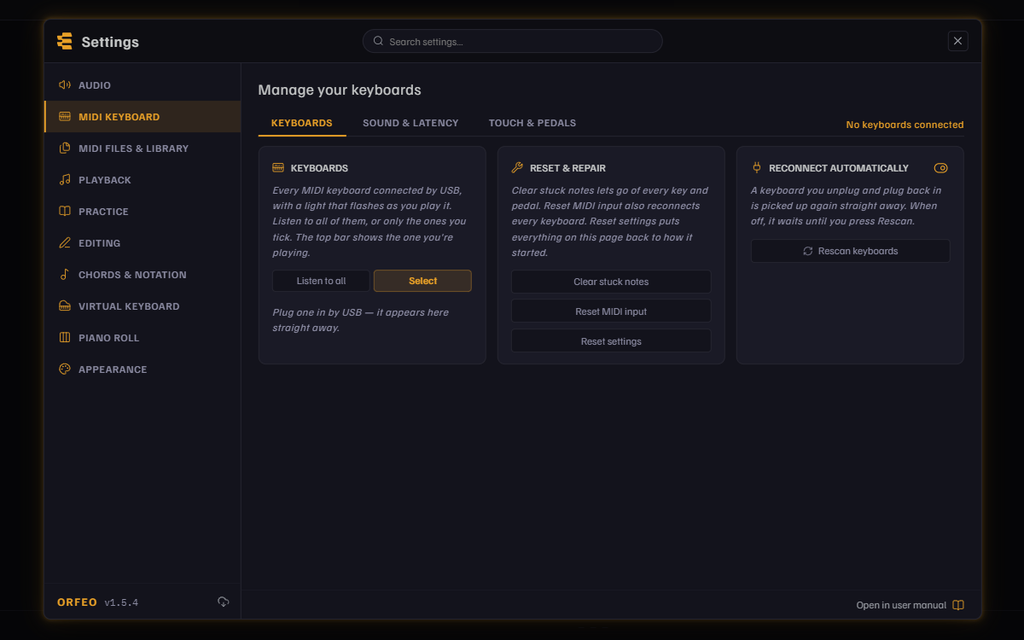
MIDI Keyboard

Plug in a keyboard. Orfeo listens.

Connect any USB or MIDI keyboard and Orfeo lights up the keys you play, names the chords under your hands and plays them with its own sounds. A whole MIDI Keyboard page in Settings makes every keyboard behave, and the Native sound engine (beta) plays what you play in under 10 ms.

  • Your keyboards, by name · every connected keyboard by its own model name, with a light that flashes as you play. Listen to all of them or only the ones you tick, and it reconnects by itself after unplugging.
  • Playing live · with the Native engine, choose Shared or Exclusive: Exclusive takes the sound card for the shortest delay, and a connected keyboard switches to it by itself. With the Studio sound, Low latency, Balanced or Stable for computers that crackle.
  • Touch response · Soft, Normal, Hard or Fixed, plus ignoring very light touches and capping the loudest note.
  • Pedals and controls · sustain, sostenuto and soft pedals, pitch bend, modulation, aftertouch, expression and volume, each marked detected once you use it.
  • General MIDI sound · play through Orfeo’s own synth, or through a connected digital piano or sound module.
  • Delay check · how long each step from key to speaker takes on your computer, and an offset that lines the key lights up with what you hear.
  • Double-note filter · ignores a key that accidentally sounds twice in a row.
  • Reset and repair · clear stuck notes, reset MIDI input or reset the settings in one click.

Tested with

Studiologic Numa X 88 · Native Instruments S88 Mk3 · Akai MPK Mini Plus · Novation Launchkey Mk IV

Read about MIDI Keyboard settings

Studiologic Numa X 88

Hello, fellow piano student!

Orfeo makes our musical journey a little more enjoyable, one note at a time. Building an app takes time, effort, and a few more cups of coffee than I’d like to admit. That’s where you come in. If Orfeo makes your musical life a little easier, you can buy me a coffee here. Every cup helps me strike the right chord.

On a serious note – no pressure, no guilt, no sad violin music if you don’t.
Just a big thank-you for being part of the journey!

Aleš, ORFEO author and developer

FAQ

Questions, answered

Short answers to what people ask first.

More answers in the manual →

Orfeo is a modern Windows app for learning and practising piano with MIDI files. Notes fall towards an on-screen keyboard, chords are named as they play, and you can slow songs down, loop passages, change key, split the hands, and clean up files. See About Orfeo.

Yes, and it always will be. There are no paid tiers, no ads, no telemetry, no sign-in, and no user accounts.

No. Orfeo has no telemetry and sends nothing about you or your files anywhere. Your settings and files stay on your computer; see Where your data lives. Orfeo only goes online to check for updates and to download extra soundfonts when you ask for them.

No. Orfeo plays, practises and edits completely offline, with every sound engine. The default soundfont, GeneralUser GS, comes with Orfeo. It only goes online in three cases:

  • Extra soundfonts: FluidR3 GM (142 MB) and MuseScore General (38 MB) download only when you click their download button in Settings → Audio.
  • Updates: the installed version checks GitHub for a new release when it starts; the portable version only shows a link. Without internet, the check is simply skipped. In the Microsoft Store version, Check for updates opens Orfeo’s page in the Store. See Updating Orfeo.
  • Links such as the User Manual and GitHub open in your web browser.

No, but you probably want one. Without it, ORFEO is just a beautiful MIDI player. Everything works with just the on-screen keyboard and your own piano or keyboard next to the computer. If you connect a USB or MIDI keyboard, Orfeo lights the on-screen keys as you play and names the chords you play. See Play along with a MIDI keyboard.