Make a lesson

From a messy download to
a lesson that fits your hands

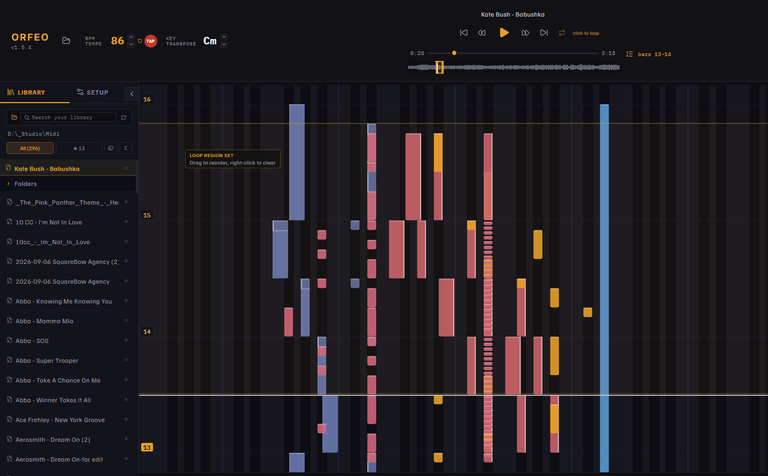
Wondering how to learn piano from MIDI files? Most files online weren’t made for practising: the tempo is off, drums leak into the piano part, both hands sit on one track. The Orfeo Piano App has the tools to fix all of it, and your original file is never touched.

Stage 1 · Find that perfect MIDI file

Start with a file worth learning

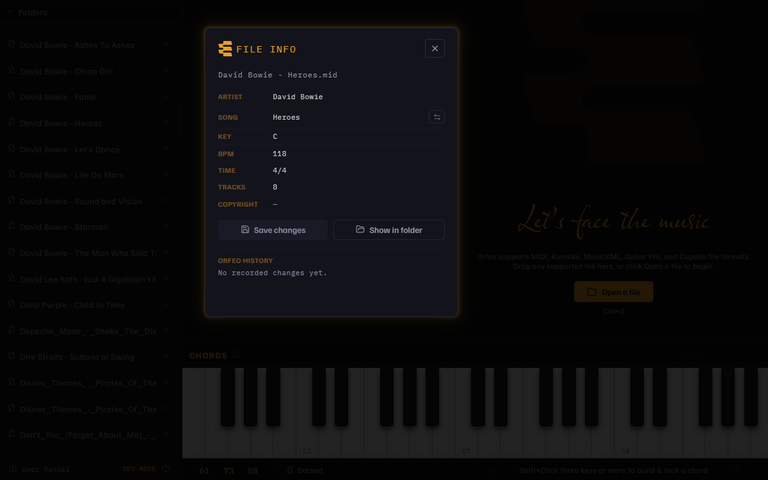
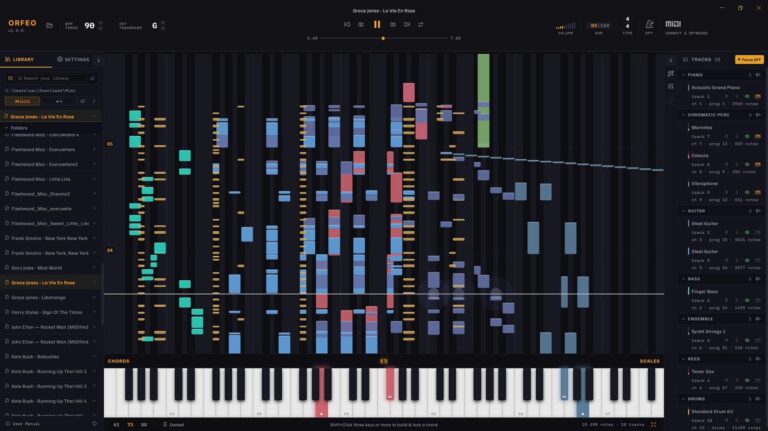
Look for a free MIDI file made for piano, with both hands and few extra instruments. Open it and Orfeo shows what’s inside: every track, its instrument and its notes on the roll, so you know in seconds whether it’s worth the effort.
Read where to find free MIDI files →

1. Search for the song and the word midi

Add piano if you want a piano arrangement.

2. Download two or three versions

Quality varies more than you would think: one file is a full band, the next a single rough piano track.

3. Open it in Orfeo

Orfeo shows every track, its instrument and its notes on the roll, so you know in seconds whether it’s worth the effort.
4. Listen before you change anything

Play the song once all the way through with the Tracks panel open. Is it the arrangement you want, does the beat line up, and which track holds the part you want to learn?

5. No MIDI file anywhere?

Look for Guitar Pro tabs, MusicXML or a karaoke file. Orfeo opens those too and converts them once into a MIDI file next to the original.

6. Keep everything in one folder

Keep your files in your library folder, so new versions show up in the Library as soon as you save them.
Stage 2

Clean up the arrangement

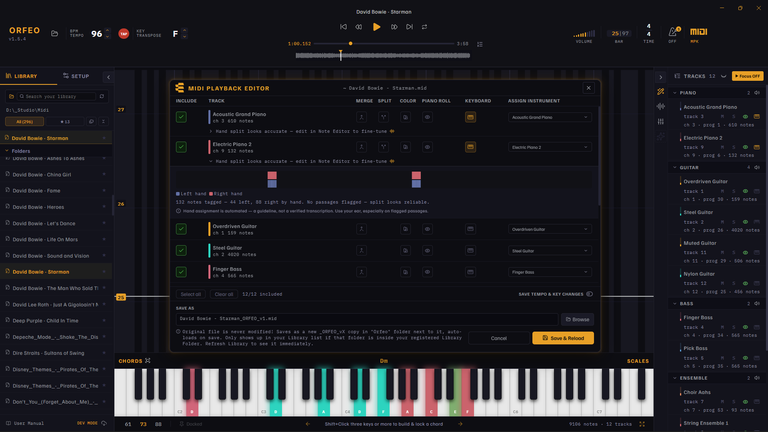
Hide or mute the parts you don’t need in the Tracks panel, merge or split tracks in the MIDI Playback Editor, and line the bar lines up with Tap Tempo. Every save is a new version, so the original stays as it was.

Read about the MIDI Playback Editor →

1. Hide or mute the parts you don’t need

Do it in the Tracks panel.

2. Merge or split tracks

Use the MIDI Playback Editor, the first icon in the Tracks panel’s icon rail. It works on the whole file, track by track.

3. Fix the beat with Tap Tempo

If the clicks drift off the drums, the bar lines sit in the wrong place or the BPM reads double, turn on Tap Tempo, put the playhead where the groove starts, click TAP and tap along.

4. Save & Reload

Orfeo writes the song as a new version into an Orfeo folder next to the original and opens it straight away. The original stays as it was.

5. Choose a tempo and key you can play

Slow it down with ▼ next to the BPM, and move it with ▲ or ▼ next to KEY if the key doesn’t suit your hands or your voice. Both last only for the session.

6. Tap Tempo doesn’t change the file

Orfeo remembers the tempo for that song, also after you rename or move it, and keeps using it in every version you save from it.

Stage 3

Fix the notes and the hands

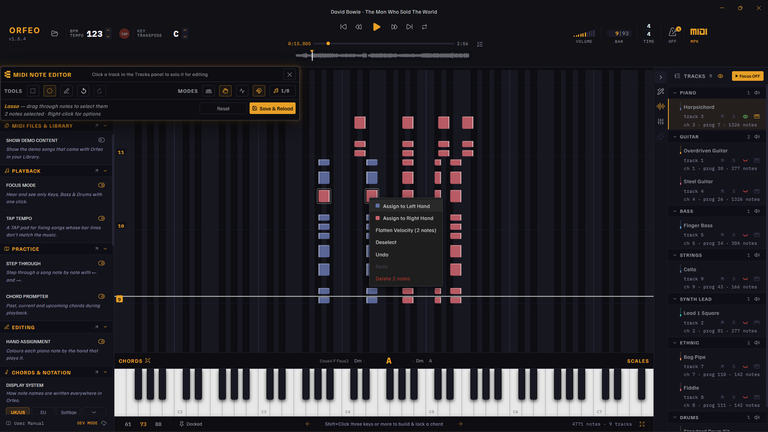
Open the MIDI Note Editor to correct wrong notes, move a note to the other hand or thin out a chord that’s too wide to reach. Then balance the sound in the Console Mixer so your part stands out. Orfeo also names the chords as the song plays, so you can learn piano chords from MIDI while you fix the hands.

Read about the MIDI Note Editor →

1. Turn on the MIDI Note Editor

Switch it on once in Settings → Editing, open it from the icon rail and click the track you want to fix.

2. Correct wrong notes

Downloads are often played in by hand or made from audio, so a few notes are wrong, late, too loud or given to the wrong hand.

3. Move a note, thin out a chord

Move a note to the other hand or thin out a chord that’s too wide to reach.

4. Find a stray note quickly

Mute the other tracks and walk through the passage with → and ←, one note or chord at a time, using Step Through. Every edit has undo and redo.

5. Balance the band

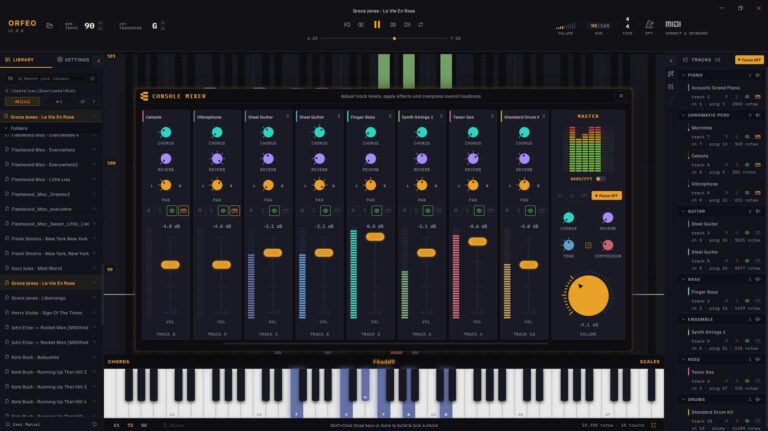
In the Console Mixer (Ctrl Shift M) pull the band down so you can hear yourself, so your part stands out.

6. Watch the chords

Orfeo names the chords as the song plays, so you can learn them while you fix the hands.

Stage 4 · Practise makes perfect

Practise makes perfect

Now set it up for practice, whether it’s a whole song or a piano solo you want to learn from MIDI. Slow it down without changing the pitch, loop the bars that trip you up, add a count-in, and use Step Through to walk a fast run note by note with the arrow keys. Save it as a new version and your lesson is ready whenever you are. Orfeo is free and open source, an open source Synthesia alternative that works with the MIDI files you already have.

Read how to turn a messy download into a lesson →

1. Slow it down

Slow the tempo down without changing the pitch.

2. Loop the bars that trip you up

Repeat a tricky passage until it sits in your hands.

3. Add a count-in

Get a count-in before the music starts.

4. Step Through a fast run

Walk a fast run note by note with the arrow keys.

5. Save it as a new version

Your lesson is ready whenever you are.

Questions

Questions, answered

How do I learn piano from a MIDI file?

Open the file in Orfeo, hide the tracks you do not need, split the hands if both sit on one track, then slow the tempo and loop the bars that trip you up. Notes fall onto an on-screen keyboard, so you see exactly what to play. The four steps above walk through it, and Turn a Messy Download into a Lesson shows a full example.

Where can I find free MIDI files?

Free MIDI files are easy to find, but quality varies a lot, so look for arrangements made for piano with both hands and few extra instruments. Where to Find MIDI Files explains what to look for and how to judge a file in seconds once it is open.

Can I learn piano chords from MIDI?

Yes. Orfeo names the chords as the song plays, and the Chord Prompter keeps the previous, current and upcoming chords in view. You can lock a chord and step through its inversions. See Live Chord Display and Chord Prompter.

How do I learn a piano solo from MIDI?

Keep only the track with the solo, set a loop around the hardest bars and slow the tempo without changing the pitch. Step Through lets you walk a fast run note by note with the arrow keys. Learn a Fast Run shows how.

Is there an open source alternative to Synthesia?

Orfeo is free and open source under GPL-3.0 and plays the MIDI files you already have. It runs on Windows, names the chords as they play and lets you fix a file without touching the original. See the full comparison with Synthesia and other apps.